Intercept
The Intercept tab lets you mock OSDK queries and actions inline without touching production code. Click a component, capture one of its @osdk/react hooks, and override the response with static data, a dynamic function, or a passthrough.
Prerequisites
Before reading this page, complete the setup described in the Prerequisites.
Select Component
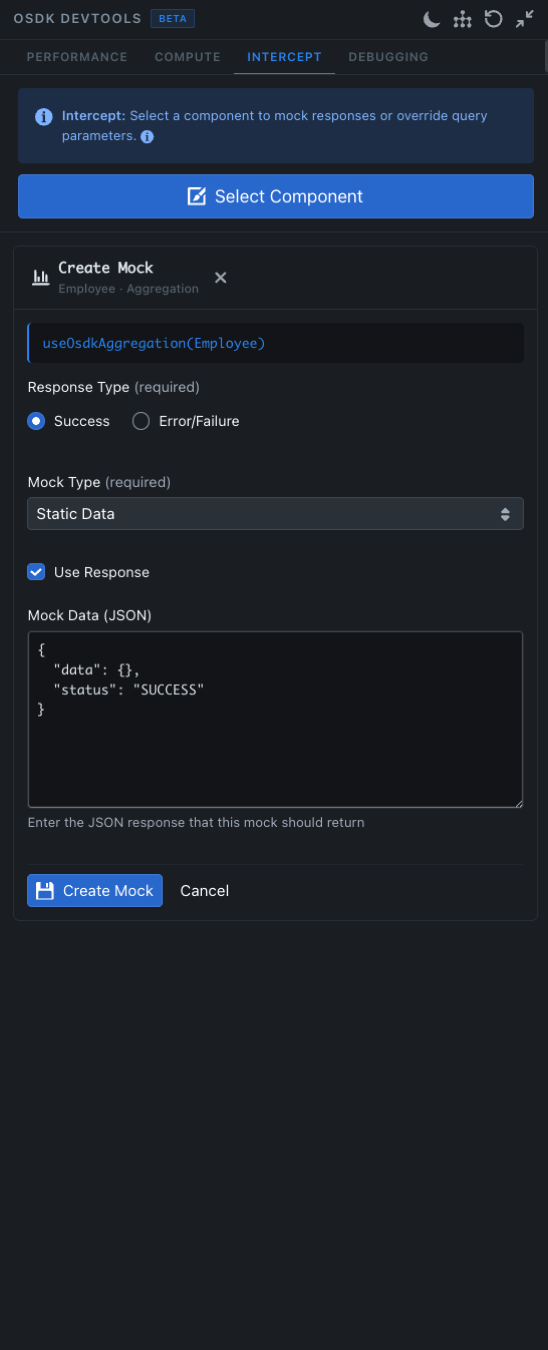
The Intercept tab opens with an info banner — "Select a component to mock responses or override query parameters" — and a big Select Component button.
- Click Select Component. The cursor becomes a picker.
- Hover over your app — components highlight as you move.
- Click a component to capture every
@osdk/reacthook it is currently using.
Create Mock
Once a hook is captured, a Create Mock panel appears, pre-filled with the hook signature (for example useOsdkAggregation(Employee)) and the object type and hook category in the header (e.g. "Employee · Aggregation").
The form has four parts:
Response Type (required)
- Success — the mock returns a successful response.
- Error/Failure — the mock surfaces an error to the hook, so you can verify error UIs.
Mock Type (required)
A dropdown that selects how the response is produced:
- Static Data — pin a literal JSON payload that the hook returns on every read.
- Function (Dynamic) — write a function that produces the response, optionally varying per call. Opens an inline CodeMirror editor so you can author the function in-panel. Useful for paginated lists, lazy loads, or simulating server-side filters.
- Pass-through — let the request hit Foundry, then transform the response on its way back into the cache.
Use Response
Toggle whether the mock value is actually returned to the hook. Turning it off temporarily disables the mock without losing the JSON you've authored.
Mock Data (JSON)
The body editor for the mock payload. The default scaffold looks like:
{
  "data": {},
  "status": "SUCCESS"
}
The exact shape depends on the hook category — the panel pre-populates a valid skeleton for the captured hook so you can edit instead of starting from scratch.
Hit Create Mock to save the intercept (and immediately apply it), or Cancel to discard.
When to use it
Reach for the Intercept tab when:
- You want to prototype a new UI state (empty, error, loading, edge-case values) without seeding the ontology
- You want to reproduce a bug that depends on a specific server response, repeatedly and deterministically
- You are building a screen against an ontology object or action that does not exist yet
- You want to demo a flow against a fixed dataset without depending on live Foundry traffic
Common scenarios
Stand in for a not-yet-built object type
A new ontology object is on the roadmap but does not exist yet. Pick Static Data, paste a realistic payload, and build the UI against it now. When the object lands, delete the intercept.
Reproduce an edge case
The bug only reproduces when a property is null, but production data never has nulls. Capture the offending component, set Response Type to Success, switch the field to null in the JSON, and reload the screen.
Force loading and error states
Set Response Type to Error/Failure and watch your error UI render against a deterministic failure, or use a Function (Dynamic) mock that delays the response to verify your loading skeleton.
Lock to a fixed dataset for screenshots or demos
Capture every hook on a screen and pin Static Data responses. The screen now renders deterministically against the snapshot, regardless of what the live ontology looks like.
Tips
- Intercepts live in-panel only. They do not persist across reloads. Treat them as scratch tools, not as fixtures.
- Toggle Use Response to flip an intercept on and off without losing the JSON.
- Combine with the Compute pause when you want to ensure no live requests escape while you iterate.
- The Debugging cache inspector shows the intercepted values exactly as they are written into the cache.